Lab 06 - Robot Operating System 2 - interactions through publishing
Robot Operating System 2 - interactions through publishing

1. Activity Identity
| Activity title | Introduction to Robotics |
|---|---|
| Topic | Robotics / ROS 2 / Simulation and Hardware |
| Authors | Institute of Robotics and Machine Intelligence Dominik Belter, Jakub Chudzinski, Marcin Czajka, Kamil Młodzikowski |
| Target learners | Bachelor (Computer Science / IT, Robotics) |
| Estimated duration | 1.5 hours |
| Difficulty level | Beginner |
| FOSSBot environment | Hybrid (Simulator and physical FOSSBot) |
| Licence | CC BY 4.0 |
2. Learning Objectives and Competences
| ID | Learning outcome | Related competences | Assessment evidence |
|---|---|---|---|
| LO1 | Students will be able to publish messages to a topic from the
command line with ros2 topic pub, controlling the robot’s
motion by setting the fields of a geometry_msgs/msg/Twist
message. |
Robotics middleware knowledge; sensor and actuator interfacing. | Screenshot of a ros2 topic pub command next to the
robot moving / /odom updating (Submission item 1). |
| LO2 | Students will be able to distinguish single (--once)
from continuous (--rate) publishing, stop a robot safely
with a zero-velocity command, and explain what happens when two
publishers share one topic. |
Computational thinking; reasoning about concurrency in a distributed system. | Screenshot of rqt_graph with two publishers on
/cmd_vel (Submission
item 2). |
| LO3 | Students will be able to apply the identical publishing workflow to
a physical FOSSBot over a shared network, selecting the correct robot
with ROS_DOMAIN_ID. |
Tool selection for working with a robot; operating real hardware safely over a network. | Photo or short video of the real robot moving, with the published command visible (Submission item 3). |
3. Prerequisites
You can build and start the FOSSBotEduSim container, you know what a node, topic and message are, and you have driven the simulated robot with
teleop_twist_keyboard.A Linux workstation with Docker, set up exactly as in Lab 05.
For the final step only: access to the lab Wi-Fi network and a physical FOSSBot, provided and powered on by your instructor.
Ability to capture evidence: screenshots, photos or a short video.
4. Required Material and Setup
| Category | Item | Version / Quantity | Notes |
|---|---|---|---|
| Hardware | Workstation | 1 per student | The same Docker-capable Linux PC used in Lab 05. See Step 1. |
| Software | FOSSBotEduSim simulator | latest from main branch |
Already cloned and built into the ros2_fossbot_edu
Docker image during Lab 05. If you no longer have the image, rebuild it
as described in Lab 05. |
| Hardware | Physical FOSSBot | 1 per group (final step only) | Instructor-provided and powered on. It exposes the same ROS 2 topics
as the simulator (/cmd_vel, /odom,
/scan). |
| Hardware | Lab Wi-Fi router / AP | 1 per room (final step only) | Instructor-provided. The robot and your workstation join the same network so they can discover each other. |
Tip: Every simulation step (1 to 5) works without the physical robot. If hardware is not available, complete those steps and read through Step 6 so you know how the real-robot workflow differs.
5. Safety, Ethics and Accessibility Notes
The simulation steps carry over the operational notes from Lab 05:
start_container.shruns the container with--network=host,--pid=host,--ipc=hostand GPU passthrough, and grants X-server access withxhost +local:root. Use these flags only with the FOSSBotEduSim image you built yourself. After the lab, runxhost -local:rooton the host, especially on shared machines.
Step 6 is the first time in this course that you command real hardware, so it adds physical safety:
Place the robot on the floor or on a wide table with clear space around it. A continuous
--ratepublish keeps the robot moving until you stop it, so a robot near a table edge can drive off.Learn the stop procedure before you start moving: press
Ctrl+Cin the terminal that is publishing, then publish a single zero-velocityTwist(see Step 4) to be sure the robot halts.Keep velocities small at first (
linear.xof about0.1). You can always increase them once you trust the controls.
6. Scenario and Problem Statement
In Lab 05 you watched the robot from the outside: you listed topics
and printed their messages with ros2 topic echo. That is
the subscriber half of the picture.
A robot is only useful when you can command it. Publishing is how every controller, from a joystick to a navigation planner, ultimately talks to a robot: it writes messages onto a topic that the robot’s drivers subscribe to. In this lab you will take the publisher role yourself. You will hand-craft velocity commands for the simulated FOSSBot, then send the very same commands to a real FOSSBot across the network.
7. Lab Workflow
| Phase | Student action | Expected output | Time |
|---|---|---|---|
| 1. Prepare | Start the container and launch the simulator | Gazebo + RViz2 running, /cmd_vel visible |
10 min |
| 2. Inspect the channel | Look at /cmd_vel and the Twist message
type |
Understanding of which fields move the robot | 10 min |
| 3. Publish once | Send one Twist with
ros2 topic pub --once |
The robot nudges, then stops on its own | 15 min |
| 4. Publish continuously | Drive with ros2 topic pub --rate, then stop with a zero
Twist |
The robot drives a path and halts reliably | 20 min |
| 5. Two publishers | Run teleop and a pub on /cmd_vel at once,
inspect rqt_graph |
An understanding of what happens when publishers compete | 15 min |
| 6. Real robot | Repeat the workflow on a physical FOSSBot over Wi-Fi with
ROS_DOMAIN_ID |
The real robot moves in response to your published command | 15 min |
| 7. Reflect | Answer the analysis questions | Short written analysis | 5 min |
8. Step-by-Step Instructions
Before you start. Capture evidence as you go. The full list of artifacts you will hand in is in Section 10. Relevant tasks below are marked with a Capture for submission note.
Step 1 - Environment preparation
You will reuse the ros2_fossbot_edu Docker image that
was built in Lab 05; here you only start it. If you no longer have that
image, rebuild it from the FOSSBotEduSim repository on your workstation
before continuing:
git clone https://github.com/LRMPUT/FOSSBotEduSim.git
cd FOSSBotEduSim
bash build_image.sh- Start the container from the
FOSSBotEduSimdirectory on your workstation:
bash start_container.shWarning: If your workstation has no NVIDIA GPU, use
bash start_container_no_gpus.shinstead, exactly as in Lab 05.
- Launch the simulator from inside the container:
ros2 launch fossbot_educational_description single.launch.py world:=simple_shapes.sdfTwo windows open: a Gazebo window with the FOSSBot in a world full of boxes, and an RViz2 window. Leave both running.
- Open a second terminal attached to the same container (run this on the host):
docker exec -it ros2_fossbot_edu bashThis second shell already has ROS 2 and the FOSSBot workspace sourced
from ~/.bashrc. You will use it to inspect topics while the
simulator runs in the first terminal.
Expected result: Gazebo and RViz2 are running, and
ros2 topic list in the second terminal shows
/cmd_vel, /odom and /scan among
the topics.
Step 2 - Inspect the command channel
Before publishing, look at the topic you are about to write to and the message it carries. In the second terminal:
ros2 topic info /cmd_vel
ros2 interface show geometry_msgs/msg/Twist
ros2 topic info tells you the message type of
/cmd_vel is geometry_msgs/msg/Twist, and how
many publishers and subscribers it currently has. The Twist
message looks like this:
Vector3  linear
        float64 x
        float64 y
        float64 z
Vector3  angular
        float64 x
        float64 y
        float64 z
The FOSSBot is a differential-drive robot: two driven wheels
and a non-holonomic constraint, which is the same kind of motion model
as the turtlesim turtle. It can only drive along its own
forward axis and rotate about the vertical axis. Of the six numbers in a
Twist, only two have any effect:
linear.x- forward (positive) or backward (negative) speed, in metres per second.angular.z- turning rate (positive turns left), in radians per second.
The other four fields stay at 0.0.
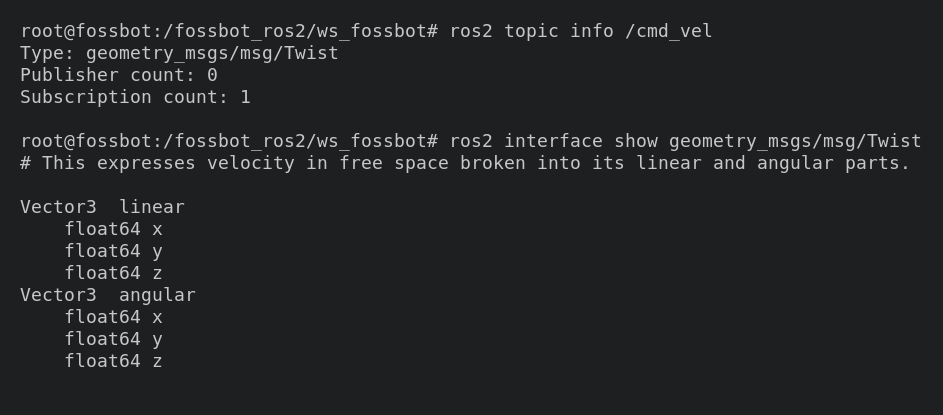
ros2 topic info /cmd_vel reports the message type
and that one subscriber (the bridge) is listening, while
ros2 interface show geometry_msgs/msg/Twist reveals the two
Vector3 fields.
Tip: You do not need to memorise message type names. Type
ros2 interface show geometry_msgs/msg/Twand pressTab, and the terminal completes it for you. The same trick works for topic and package names.
Task 2.1
Looking at the Twist structure above, state which two
fields move this particular robot and why the other four are ignored.
You will use this answer in Step 3.
Expected result: You can point to
linear.x and angular.z and explain that a
differential-drive robot has only those two degrees of freedom.
Step 3 - Publish a single command
Now you take the publisher role. In the second terminal, send a
single Twist that asks the robot to move forward
slowly:
ros2 topic pub --once /cmd_vel geometry_msgs/msg/Twist "{linear: {x: 0.2}, angular: {z: 0.0}}"The --once flag publishes the message exactly one time
and then exits. Watch the Gazebo window: the robot nudges forward and,
after a short moment, stops by itself.
The robot stops because the differential-drive controller treats a velocity command as valid only for a short timeout. If no new command arrives, it assumes the commander has gone away and brings the wheels to a halt. This is a safety feature; you will see its consequence again in Step 4.
To watch the effect numerically, open a third terminal
(docker exec -it ros2_fossbot_edu bash on the host) and
echo the odometry while you publish:
ros2 topic echo /odom --onceRun it once before publishing and once just after, and compare the
position values.
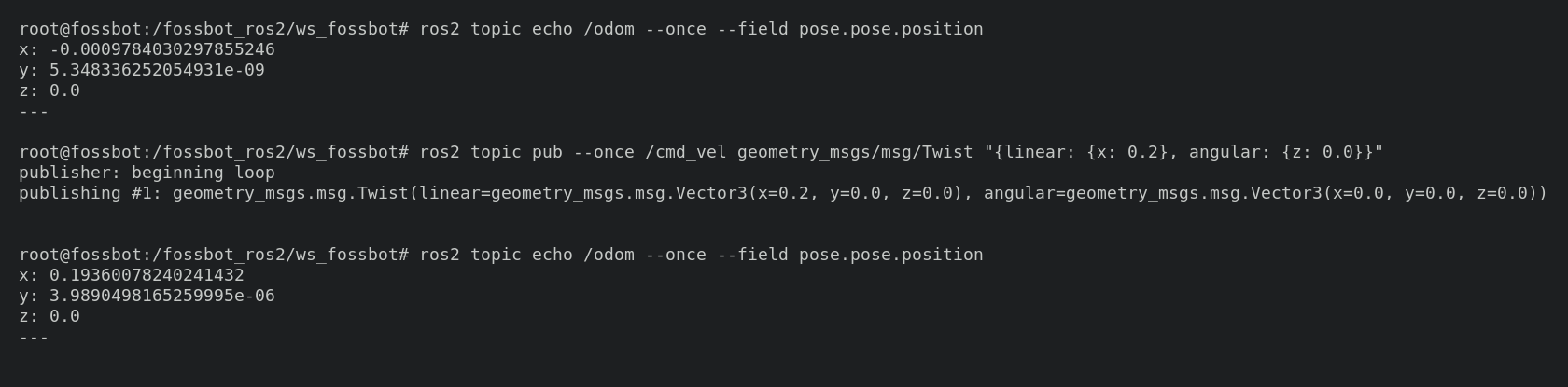
Before publishing, the robot is at the origin (x
near 0). After a single ros2 topic pub --once
forward command, /odom reports x of about
0.19: the published Twist moved the
robot.
Task 3.1
Send a command that makes the robot rotate in place, without moving forward:
ros2 topic pub --once /cmd_vel geometry_msgs/msg/Twist "{linear: {x: 0.0}, angular: {z: 0.5}}"Confirm in Gazebo that the robot turns on the spot rather than driving forward.
Expected result: A single forward command nudges the robot and it stops on its own; a single rotation command spins it in place.
Capture for submission: screenshot the
ros2 topic pubcommand together with the robot displaced in Gazebo (or the changed/odomnumbers).
Step 4 - Publish continuously and stop safely
A single command stops almost immediately, so to actually drive
somewhere you must publish repeatedly. The --rate
flag does this for you: it republishes the same message at a fixed
frequency until you stop it.
- In the second terminal, start a continuous forward command at 10 Hz:
ros2 topic pub --rate 10 /cmd_vel geometry_msgs/msg/Twist "{linear: {x: 0.2}}"The robot now drives forward and keeps going, because a fresh command arrives every 0.1 s and the controller’s timeout never expires.
- In the third terminal, watch the position climb:
ros2 topic echo /odom- Stop the robot. First press
Ctrl+Cin the second terminal to end the continuous publish. The robot coasts to a stop after the timeout. To guarantee it is stopped, publish one explicit zero-velocity command:
ros2 topic pub --once /cmd_vel geometry_msgs/msg/Twist "{linear: {x: 0.0}, angular: {z: 0.0}}"Warning: Get into the habit of sending this zero
Twistnow, in simulation. On the real robot in Step 6 it is what reliably halts the hardware.
Task 4.1
Drive the robot in a rough square. Alternate between a few seconds of
forward motion and a short rotation, using --rate publishes
and Ctrl+C between them:
# forward leg
ros2 topic pub --rate 10 /cmd_vel geometry_msgs/msg/Twist "{linear: {x: 0.2}}"
# Ctrl+C, then turn roughly 90 degrees
ros2 topic pub --rate 10 /cmd_vel geometry_msgs/msg/Twist "{angular: {z: 0.5}}"
# Ctrl+C, repeat
Watch the position and orientation fields
of /odom change as you go.
Expected result: The robot follows your commands
while you publish, and a single zero Twist reliably brings
it to a stop.
Capture for submission: screenshot the
--ratecommand beside the moving robot and the updating/odomterminal.
Step 5 - Two publishers on one topic
A topic does not belong to a single publisher. Any number of
publishers can write to /cmd_vel, and ROS 2 does not decide
which one “wins”; it simply delivers every message to the subscribers in
the order they arrive. You can see this directly.
- In the second terminal, start the keyboard teleoperator from Lab 05:
ros2 run teleop_twist_keyboard teleop_twist_keyboard- In the third terminal, start a competing continuous command:
ros2 topic pub --rate 10 /cmd_vel geometry_msgs/msg/Twist "{angular: {z: 0.5}}"Now drive with the teleop keys in the second terminal. The robot twitches and fights itself: each subscriber message is whichever command arrived most recently, so the motion alternates between your keypresses and the steady rotation.
- Open a fourth terminal and start the graph visualiser:
rqt_graphFind the /cmd_vel topic and notice that two arrows now
point into it: the teleop_twist_keyboard node and the
ros2 topic pub process are both publishers on the same
topic.
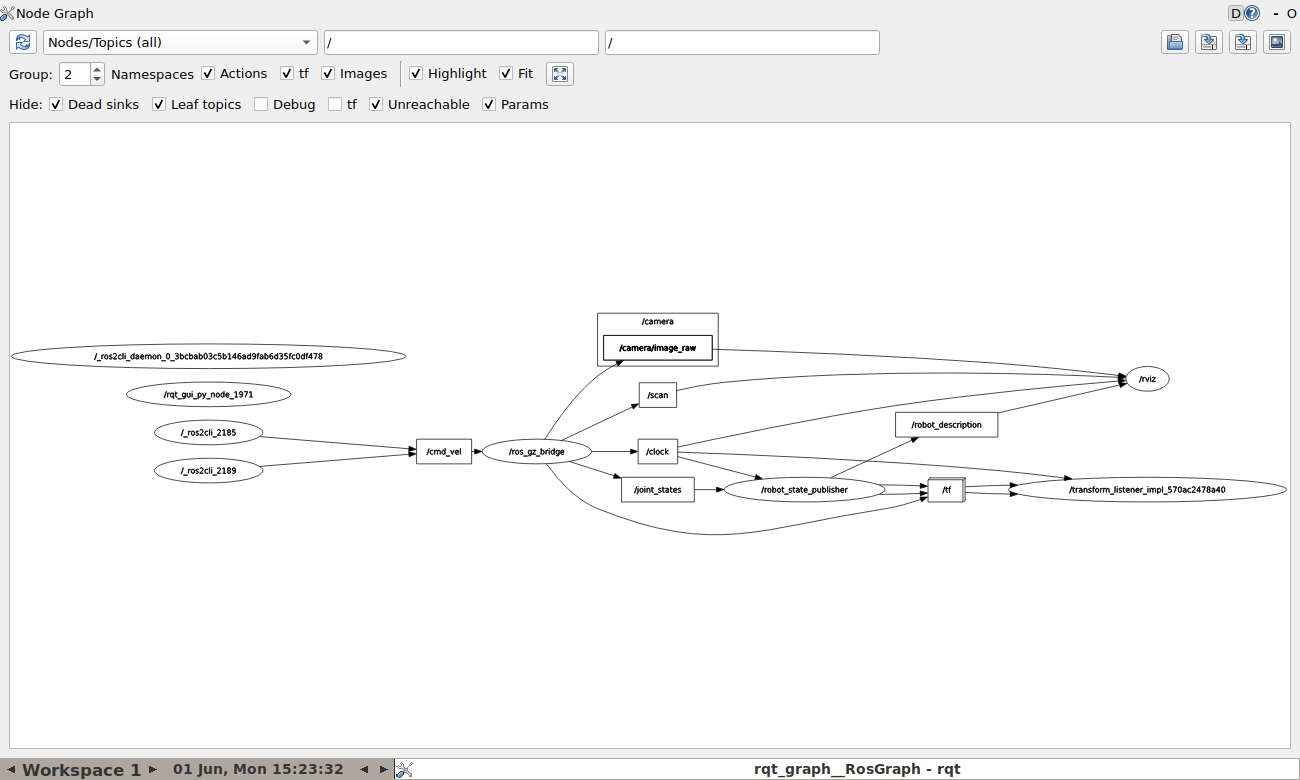
Two publishers (here two ros2 topic pub commands,
shown as the /_ros2cli_... nodes on the left) both feed the
single /cmd_vel topic, which the
/ros_gz_bridge node subscribes to. ROS 2 delivers every
message from both; it does not pick a winner.
This is why production robots place a multiplexer between
many command sources and the wheels. The twist_mux package
(already installed in the container) listens to several command topics,
applies a priority order, and forwards only the winner to
/cmd_vel, so a high-priority source such as an emergency
stop always overrides a joystick or a planner.
When you are done, stop both publishers (Ctrl+C in each
terminal) and send the zero Twist from Step 4.
Task 5.1
With both publishers running, take a screenshot of
rqt_graph showing two arrows feeding into
/cmd_vel.
Tip: If the graph looks empty or shows only one publisher, change the top-left dropdown to Nodes/Topics (all) and click the refresh icon.
Expected result: The robot responds erratically
while two publishers compete, and rqt_graph shows both of
them connected to /cmd_vel.
Capture for submission: the
rqt_graphscreenshot with two publishers on/cmd_vel.
Step 6 - Do the same on a real FOSSBot
A real FOSSBot runs its own ROS 2 nodes and exposes the same topics as the simulator. Instead of launching a simulator, you join the robot’s network and let ROS 2 discover it.
Connect to the robot by following Connecting to real robot,
then come back here. Do not launch the simulator. When
ros2 topic list shows the robot’s /cmd_vel,
/odom and /scan, you are ready for the tasks
below, which use the same commands you ran in simulation.
Task 6.1
Clear the space around the robot and have the stop command ready.
Publish the same single forward command you used in Step 3, keeping the speed
small, then stop it with the zero Twist from Step 4:
ros2 topic pub --once /cmd_vel geometry_msgs/msg/Twist "{linear: {x: 0.1}, angular: {z: 0.0}}"
# then, to be sure it is stopped:
ros2 topic pub --once /cmd_vel geometry_msgs/msg/Twist "{linear: {x: 0.0}, angular: {z: 0.0}}"
The real robot should move forward a short distance, exactly as the simulated one did.
Task 6.2
In another terminal (with ROS_DOMAIN_ID exported), echo
the robot’s sensors and compare them with what you saw in
simulation:
ros2 topic echo /odom --once
ros2 topic echo /scan --once
Warning: Clear space around the robot before every publish, and keep one hand near the keyboard to send the zero
Twist. A real robot does not stop the instant you stop typing; it stops when the controller’s timeout expires or when you command zero velocity.
Expected result: The real FOSSBot moves in response
to your published Twist, and its /odom and
/scan messages have the same structure as the
simulator’s.
Capture for submission: a photo or short video of the real robot moving, with the published command visible on screen.
9. Analysis Questions
In Task 3.1 a single
--onceTwistmade the robot move and then stop on its own. Why does it stop without any further command from you, and what does that tell you about how often a real controller has to publish to keep a robot moving?In Step 5 two publishers wrote to
/cmd_velat the same time. What did the robot actually do, and why does ROS 2 allow a second publisher rather than rejecting it? Give one situation where having several publishers on one command topic is genuinely useful.In Step 4 you published a zero
Twistafter pressingCtrl+C. Why is that safer than trusting the robot to stop by itself once you stop publishing?In Step 6 you set
ROS_DOMAIN_IDbefore listing topics. If two groups in the same room forgot to set distinct domain ids on the same Wi-Fi, what would happen when one group published to/cmd_vel?
10. Submission Requirements
A screenshot of a
ros2 topic pubcommand together with the robot displaced in Gazebo or the changed/odomnumbers, from Step 3 or Step 4.A screenshot of
rqt_graphshowing two publishers on/cmd_vel, from Task 5.1.A photo or short video of the real FOSSBot moving in response to your published command, with the command visible, from Task 6.1.
Short answers (2 to 3 sentences each) to the four analysis questions.
11. References and Open Licence
- ROS 2 Jazzy documentation: https://docs.ros.org/en/jazzy/
- Understanding ROS 2 topics: https://docs.ros.org/en/jazzy/Tutorials/Beginner-CLI-Tools/Understanding-ROS2-Topics/Understanding-ROS2-Topics.html
- About
ROS_DOMAIN_ID: https://docs.ros.org/en/jazzy/Concepts/About-Domain-ID.html - FOSSBotEduSim repository: https://github.com/LRMPUT/FOSSBotEduSim
- Loosely based on the Publishing data lab in the
lab-tasfrscourse, Poznan University of Technology, Institute of Robotics and Machine Intelligence.
The Creative Commons Attribution 4.0 International (CC BY 4.0) license allows users to share, copy, distribute, and adapt the work, even for commercial purposes, as long as proper credit is given to the original creator.
EU funding disclaimer
Funded by the European Union. Views and opinions expressed are however those of the author(s) only and do not necessarily reflect those of the European Union or the European Education and Culture Executive Agency (EACEA). Neither the European Union nor EACEA can be held responsible for them.